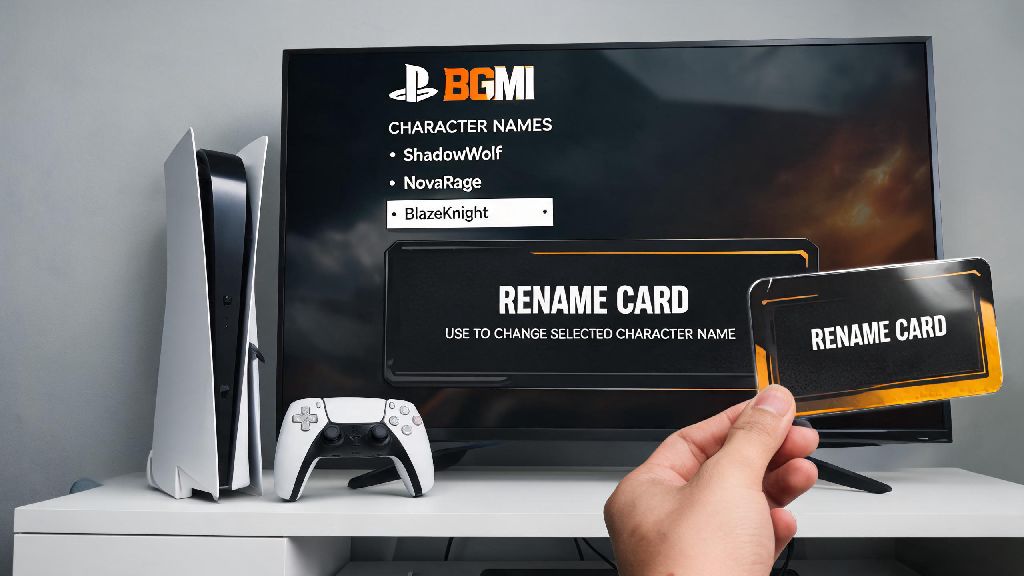
If you’ve been playing BGMI for a while, you’ve probably outgrown that silly random name you picked when you first signed up, or want to rebrand your in-game identity to match your new crew or content creator name. Figuring out how to change name in BGMI is simpler than you think, but there are a few hidden rules most players miss that can waste your hard-earned UC or even lock you out of name changes for weeks. I’ve done this process a dozen times for my own accounts and friends, so I’m breaking down every step, hacks for free name changes, and all the mistakes to skip.
What You Need Before You Learn How to Change Name in BGMI
You don’t just hit a button and type a new name for free out of nowhere. The game has set requirements to prevent spam and constant identity changes that confuse teammates and opponents alike. First, you need a Rename Card – this is the core item required for any name change, no exceptions. You can’t skip this step even if you’ve spent thousands of UC on skins or are a high-rank player.
Next, your new name has to follow the game’s community guidelines. That means no offensive terms, no impersonation of official staff, no special symbols that break the game’s UI, and no names longer than 14 characters. I’ve seen dozens of players waste a Rename Card because they tried to use a banned phrase, so double-check your chosen name before you confirm the change.
Finally, you have to wait 30 days between each name change. If you changed your name two weeks ago, you’ll have to wait another two weeks even if you have extra Rename Cards sitting in your inventory.
Step-by-Step Process to Change Your BGMI Name
Once you have your Rename Card ready and your new name picked out, the actual process takes less than a minute if you follow these steps correctly. First, open BGMI on your device and log into the account you want to change the name for. Make sure you’re logged into the right account, especially if you switch between multiple accounts on the same device.
Tap on your profile icon in the top right corner of the main lobby screen – this is the small circular icon with your current profile picture on it. Next, tap the small edit icon next to your current display name, right below your profile level and tier badge. You’ll see a pop-up that asks if you want to use a Rename Card to change your name. Tap “OK” to proceed.
Now type your desired new name into the text box. Double-check for typos, because once you confirm the change, you can’t undo it for 30 days, and you’ll lose your Rename Card even if you spelled the name wrong. Finally, tap “Confirm” to complete the change. Your new name will show up immediately across your profile, leaderboards, and in matches right away. That’s all there is to how to change name in BGMI once you have your items sorted.
How to Get Free Rename Cards for BGMI Name Changes
Most new players assume you have to spend UC to buy Rename Cards, but there are actually several free ways to get them if you know where to look. I’ve gotten at least 4 free Rename Cards in the last year alone without spending a single rupee on the game. Here are the most reliable methods:
If none of these options work for you, you can always buy a Rename Card from the in-game shop for 180 UC, which is around 150 rupees, depending on your region. Never buy Rename Cards from third-party sellers – these are almost always scams that can get your account banned permanently, or steal your personal information.
Common Mistakes to Avoid When Changing Your BGMI Name
Even if you follow all the steps correctly, there are a few common mistakes that can ruin your name change attempt, waste your Rename Card, or even get you in trouble with the game’s moderators. First, don’t use special characters that aren’t allowed. BGMI only allows a small set of special characters, including underscores, periods, and basic numbers. Any other symbols, like emojis or fancy text fonts from third-party apps, will be rejected, and you’ll lose your Rename Card if you try to use them.
Don’t pick a name that violates the game’s community guidelines – if your name is reported by other players or flagged by the game’s automatic moderation system, you’ll be forced to change your name for free, but you’ll also get a temporary account ban if you repeat the offense. Another mistake a lot of players make is changing their name right before a big tournament or clan war. Even though the name change shows up immediately, some tournament platforms take up to 24 hours to sync your new name, so you might not be allowed to join the tournament if your registered name doesn’t match your in-game name.
Finally, don’t share your account information with anyone else to change your name for you. This puts your account at risk of being hacked or stolen, and you could lose all your skins, UC, and progress permanently. If you’re having trouble getting your name approved, try swapping out special characters or adjusting the spelling slightly instead of trying to force a banned phrase that breaks the rules.
At the end of the day, your in-game name is one of the first things other players see when you join a match, so it makes sense you want it to feel personal and true to how you play. Now that you know how to change name in BGMI the right way, you don’t have to stress about wasting UC or running into unexpected errors mid-process. Take the time to pick a name you’ll be happy with for at least 30 days, and keep an eye out for free Rename Card rewards so you never have to pay for a name change if you don’t want to. If you run into any issues with your name change not going through, you can always reach out to BGMI’s official customer support for help fixing the problem.