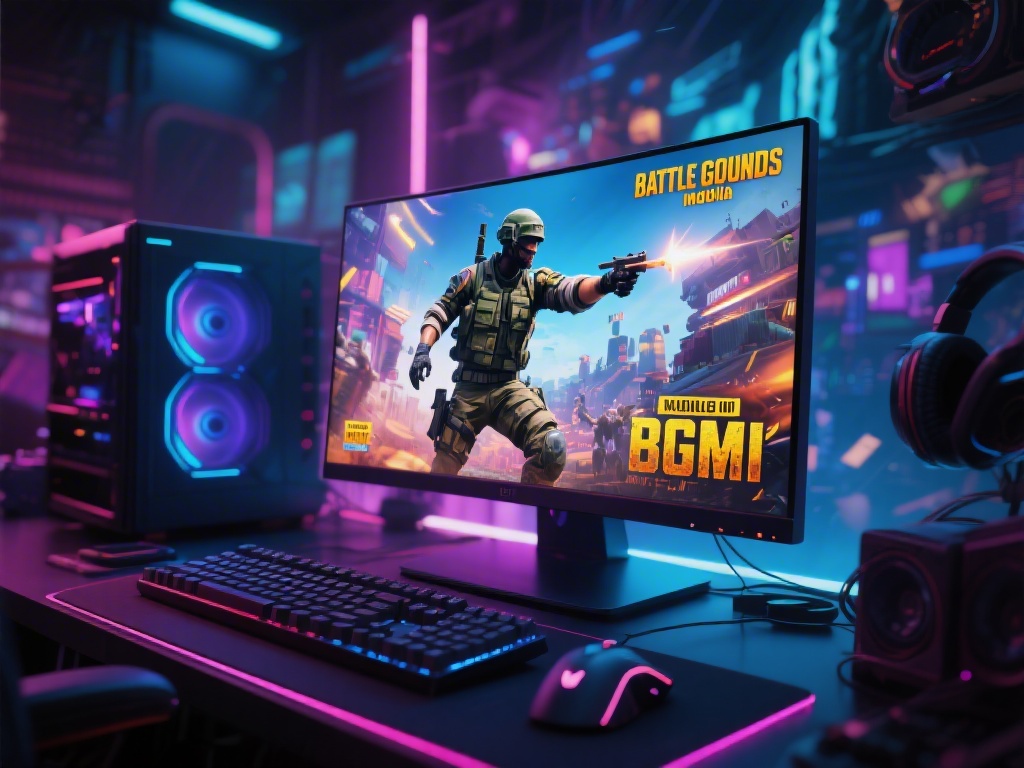
Are you a fan of Battle Grounds Mobile India (BGMI) and looking to download it on your PC? Look no further! In this comprehensive guide, we will walk you through the entire process, from downloading the necessary software to installing the game itself. So, if you're ready to take your BGMI gaming to the next level, keep reading!
Why Play BGMI on PC?
Playing BGMI on your PC offers several advantages. First, you'll enjoy a larger screen and better graphics, making the game more immersive. Additionally, with a PC, you can enjoy a wider range of keyboard and mouse controls, giving you a competitive edge. Lastly, playing on a PC allows you to use higher-quality settings, which can significantly enhance your gaming experience.
Step 1: Downloading BlueStacks
BlueStacks is one of the most popular Android emulators for PC, allowing you to run Android games and apps on your computer. To download BlueStacks, follow these steps:
Step 2: Setting Up BlueStacks
After installing BlueStacks, you'll need to set it up:
Step 3: Playing BGMI on PC
Now that you have BGMI installed, you're ready to start playing:
Step 4: Tips for a Better Gaming Experience
Here are some tips to help you get the most out of your BGMI gaming experience on PC:
And there you have it – a complete guide on how to download BGMI on your PC. By following these steps, you'll be able to enjoy all the excitement of BGMI on a larger screen with enhanced controls. Happy gaming!