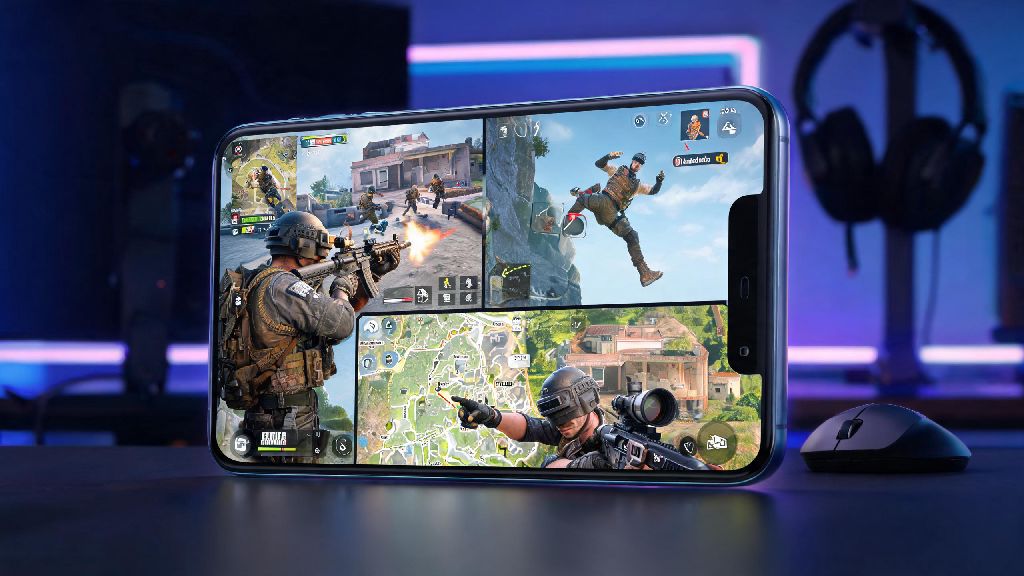
If you’ve spent hours grinding BGMI ranked matches in 2026 and want to share your clutch plays, funny fails, and pro tips with a wider audience, you’ve probably wondered how to stream BGMI on YouTube from mobile without dropping frames or dealing with messy audio. A lot of new creators assume you need expensive desktop gear to go live, but that’s far from the truth. Most mid-range Android and iOS phones released after 2023 can handle high-quality BGMI streams with the right settings and free tools. I’ve been streaming BGMI on YouTube from my Samsung S24 for 8 months now, and I regularly hit 150+ concurrent viewers without spending a dime on extra hardware. This guide breaks down every step you need to follow to go live smoothly, even if you’ve never streamed before.
Pre-Stream Requirements You Need to Check Before Going Live in 2026
Before you even think about hitting the go live button, you need to tick a few basic boxes to avoid last-minute errors. A lot of new creators skip these steps and end up wasting 30 minutes troubleshooting instead of playing, so don’t make that mistake. The core requirements for mobile BGMI streaming in 2026 are:
If you don’t have 100 subscribers yet, you can still practice streaming with private or unlisted settings to get used to the process. 5GHz Wi-Fi is non-negotiable for 1080p 60fps streams because 2.4GHz gets congested easily, especially if you have multiple devices connected to your home network. If you only have access to 2.4GHz Wi-Fi, you can drop to 720p 30fps to avoid lag, but your stream quality won’t be as sharp for viewers.
How to Stream BGMI on YouTube from Mobile: Step-by-Step for Android & iOS
The process for going live is almost identical for Android and iOS users now in 2026, thanks to recent updates to the main YouTube app that removed the need for third-party streaming tools for most users. First, open the YouTube app on your phone, tap the + icon in the bottom center of the screen, and select “Go Live” from the menu options. You’ll be prompted to give YouTube permission to access your camera, microphone, and screen recording – make sure to grant all of these, otherwise you won’t be able to stream gameplay.
Next, select “Gaming” as your stream category, and search for BGMI from the list of supported games. Adding the correct game tag will help YouTube recommend your stream to users who watch BGMI content regularly. Write a clear, specific stream title and description, upload a custom thumbnail if you have one, and select your preferred privacy setting (public, unlisted, or private). Make sure to turn on "Do Not Disturb" mode before you start streaming so calls, notifications, and message pop-ups don't interrupt your gameplay or distract your viewers.
Once your settings are finalized, select “Screen Share” as your stream source, adjust the audio sliders to make sure both your mic and game audio are at balanced levels, and tap “Go Live”. You’ll see a 3-second countdown, after which you can switch directly to the BGMI app and start playing. If you run into permission issues during setup, you can refer to YouTube’s official 2026 mobile streaming troubleshooting guide to resolve common errors in 2 minutes or less.
2026 Settings Tweaks to Reduce Lag and Boost Stream Quality
Even if you have a top-tier phone, bad settings can turn your stream into a laggy, unwatchable mess. The biggest mistake new mobile streamers make is running BGMI at max graphics settings while streaming, which puts too much load on your phone’s processor and causes both in-game frame drops and stream buffering. The ideal in-game settings for streaming are smooth graphics, 60fps frame rate, and shadows turned off – this reduces the load on your processor so it can handle both running the game and encoding the stream at the same time.
For your stream settings, you’ll need to adjust your bitrate based on your internet speed. If you have a 100Mbps or faster upload speed, you can stream at 1080p 60fps with a bitrate of 6000 kbps. If your upload speed is between 30Mbps and 100Mbps, drop to 1080p 30fps with a 4500 kbps bitrate. If your upload speed is slower than 30Mbps, stick to 720p 30fps with a 3000 kbps bitrate to avoid buffering for your viewers.
You should also keep your phone plugged in while streaming, because BGMI and streaming both drain battery extremely fast, and low battery can trigger performance throttling on most devices. I’ve tested this myself – when I stream without charging my phone, my frame rate drops from 60fps to 40fps after 45 minutes, which makes the stream unwatchable for viewers. You can buy a cheap mobile cooling fan for under $15 if you stream for more than 2 hours at a time, it’s one of the best investments you can make as a new creator to prevent overheating-related crashes.
Tips to Grow Your BGMI YouTube Stream Audience in 2026
A lot of new streamers go live once, get 2 viewers, and give up, but growing an audience takes consistent effort, not perfect first streams. First, make your stream title specific – don’t just write “BGMI live”, write “2026 BGMI Ranked Grind: Pushing to Conqueror | Tips for New Players” so people know exactly what they’re getting when they click. Generic titles get lost in the sea of other BGMI streams, so specificity is key to standing out.
Second, interact with every viewer who comments in your chat, even if it’s just a hello. Viewers are way more likely to subscribe and come back if you acknowledge them, instead of ignoring chat to focus only on the game. I make a point to shout out every new subscriber by name, and that small gesture has helped me build a really loyal core audience over the past few months. Third, stream at the same time every day, so your audience knows when to tune in. I stream from 7PM to 9PM IST every weekday, and 70% of my viewers are regulars who show up within the first 10 minutes of me going live.
Don’t forget to add relevant tags to your stream, including "BGMI live 2026", "mobile BGMI stream", and your region, to help new viewers find your content via YouTube search. You can also clip your best plays from the stream and post them as Shorts after you go live, which helps drive more viewers to your next stream. Don’t get discouraged if you only get a few viewers for your first 10 streams – most small creators take 2-3 months of consistent streaming to start growing their audience.
Streaming BGMI on YouTube from mobile is way more accessible in 2026 than most people think, and you don’t need thousands of dollars worth of gear to build a loyal audience. Start small, test different settings to find what works best for your device and internet connection, and don’t get discouraged if your first few streams only get a handful of viewers. If you follow the steps we covered, you’ll be able to go live smoothly and share your BGMI gameplay with the world in no time. Now that you know how to stream BGMI on YouTube from mobile, the only thing left to do is hit that go live button and show off your skills.