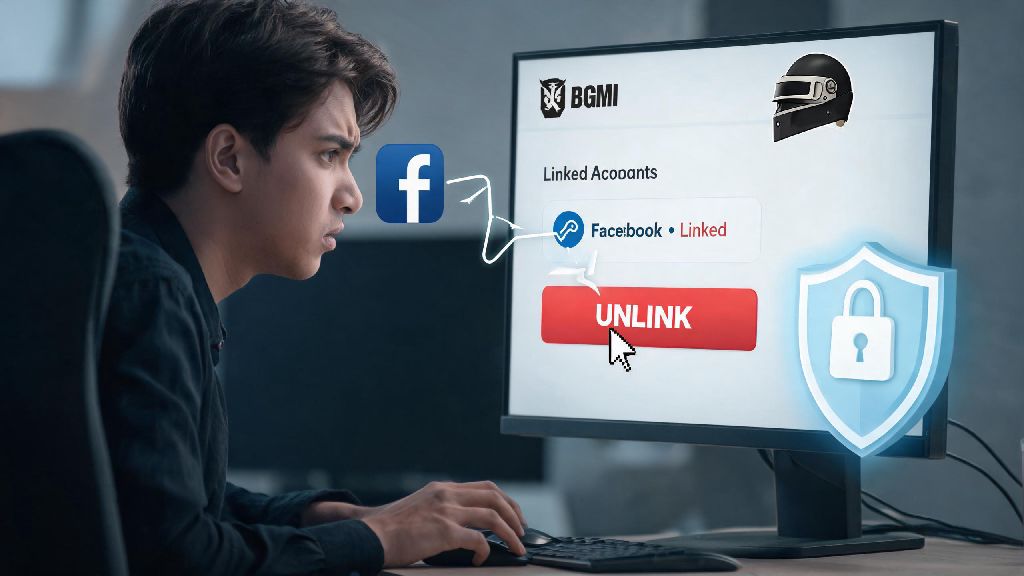
If you’ve been playing BGMI for any length of time, you probably linked your Facebook account at some point to skip creating a separate login and share gameplay clips easily. But as Kraftoon rolled out new account security and privacy features in 2026, a lot of old tutorials for adjusting linked accounts no longer work. Whether you’re switching to a different login method, worried about data sharing, or can’t access your old Facebook profile anymore, knowing how to unlink facebook account from bgmi correctly will save you from losing years of in-game progress and purchases.
Why Players Choose to Unlink Their Facebook Accounts from BGMI in 2026
There’s no one-size-fits-all reason to cut the tie between your Facebook and BGMI profiles, and most of them are completely valid as long as you follow Kraftoon’s terms of service. I ran into the greyed out unlink issue myself earlier this year when I tried to switch my main login from my old college Facebook account to my Google Play profile, so I know how frustrating it is when you can’t find clear, updated guidance. The top reasons players reach for the unlink button right now include:
It’s worth noting that unlinking your account is not the right move if you’re planning to sell your BGMI profile, since account sales violate Kraftoon’s TOS and can result in a permanent ban. You also won’t be able to easily share gameplay clips directly to Facebook or pull in your Facebook friends list for quick squad invites after unlinking, so weigh those small conveniences against your privacy or access needs first. Account security is always the top priority, so if your linked Facebook account has been compromised, unlinking it as soon as possible is non-negotiable.
Step-by-Step Guide to Unlink Facebook Account from BGMI (2026 Updated)
Kraftoon rearranged the account settings menu in the 2.9 update earlier this year, so if you’re following a pre-2026 tutorial, you’ll probably get lost looking for the old “Social Links” tab. These steps work for both Android and iOS versions of the game, as long as you’ve downloaded the latest official update from the Google Play Store or Apple App Store:
First, open BGMI and log in to the profile you want to adjust. Tap your profile icon in the top right corner of the home screen, then tap the small settings cog in the top right of your profile page. From the settings menu, select the Account & Security tab, which is now the third option from the top, right above “Graphics Settings.” Scroll down until you see the “Linked Accounts” section, and you’ll see all login methods currently connected to your BGMI profile listed there.
Tap the Facebook option, and you’ll see a pop-up with two choices: “Refresh Link” and “Unlink Account.” Select “Unlink Account,” and you’ll be prompted to verify your identity with a one-time passcode sent to your registered phone number or email address on file. Enter the code within 10 minutes, and you’ll see a final confirmation screen warning you about the effects of unlinking. Tap “Confirm” to complete the process.
You must have at least one other active linked login method before you can unlink your Facebook account, or you will lose access to your BGMI profile permanently. If you don’t have a second login added, you’ll see the unlink option greyed out, so take two minutes to add your Google Play, Apple ID, or phone number first before you start the unlink process. You’ll also have a 7-day cooling off period after unlinking, where you can reverse the action if you change your mind, no questions asked.
Fixes for Common Errors When Unlinking Facebook from BGMI in 2026
Even if you follow every step perfectly, you might run into a few common glitches that stop you from completing the unlink process. Most of these have simple fixes that take less than five minutes to work through, so you don’t need to panic if you hit a roadblock.
The most common issue people report is the “Unlink Option Greyed Out” error. If this happens, first double check that you have at least one other active, verified login method linked to your account. If you do, make sure you haven’t changed your account password or linked a new device in the last 24 hours, since Kraftoon locks account setting changes for a full day after security updates to prevent hacking. If you still see the greyed out button after 24 hours, try logging out of BGMI, clearing your app cache, and logging back in.
Another frequent complaint is the OTP not arriving when you try to verify your identity. First, check your spam or promotions folder if the code is being sent to your email, or turn off do not disturb mode on your phone if you’re waiting for an SMS. If you still don’t get the code after 10 minutes, tap “Resend OTP” a maximum of two times, since spamming the resend button can trigger a 1 hour cooldown on verification messages. If you run into an error that you can't fix on your own, submit a ticket through the official BGMI customer support portal for faster resolution, instead of trusting third-party tools that claim to unlink accounts for you.
Never use third-party unlink tools, even if they claim to be free or faster than the official process. Almost all of these tools are designed to steal your account credentials, UC, or personal information, and using them will almost always result in a permanent account ban from Kraftoon. If you lose access to your linked Facebook account entirely, you can still request an unlink through official support by providing proof of account ownership, like past purchase receipts or your player ID.
What to Do After You Unlink Your Facebook Account from BGMI
Once you get the confirmation that your Facebook account has been unlinked, there are a few quick steps you should take to make sure everything is working correctly and you don’t run into access issues later. These take less than 10 minutes total, and they’ll save you a lot of stress down the line.
First, log out of BGMI completely, then log back in using your secondary login method to confirm it works. If you can’t log in, use the 7-day cooling off period to relink your Facebook account and troubleshoot the issue before the unlink becomes permanent. Next, check your in-game inventory, rank progress, and UC balance to make sure none of your data was lost during the unlink process. It’s extremely rare to lose progress if you followed the official steps, but catching any issues early makes them far easier to fix.
Save a screenshot of your player ID and updated linked accounts list right after unlinking, and store it somewhere safe outside of your game files. If you ever need to reach out to support about account issues later, this screenshot will serve as proof of ownership and make the resolution process much faster. You should also double check your privacy settings to make sure no leftover permissions are still active between your Facebook account and BGMI, though the official unlink process usually removes all of these automatically.
If you decide you want to relink your Facebook account later, or link a different social media profile, you can do that through the same Account & Security menu at any time. Just keep in mind that you can only unlink each login method once every 90 days, so make sure you’re sure about your choice before you confirm the unlink.
At the end of the day, knowing how to unlink facebook account from bgmi in 2026 is a simple skill that gives you more control over your gaming account and personal data. As long as you follow the updated steps, add a secondary login before you start the unlink process, and avoid sketchy third-party tools, you won’t run into any major issues. I’ve walked half my BGMI clan through this process over the last few months, and no one has lost progress or run into permanent account locks. If you hit a snag that isn’t covered here, drop a comment below and I’ll help you work through it.