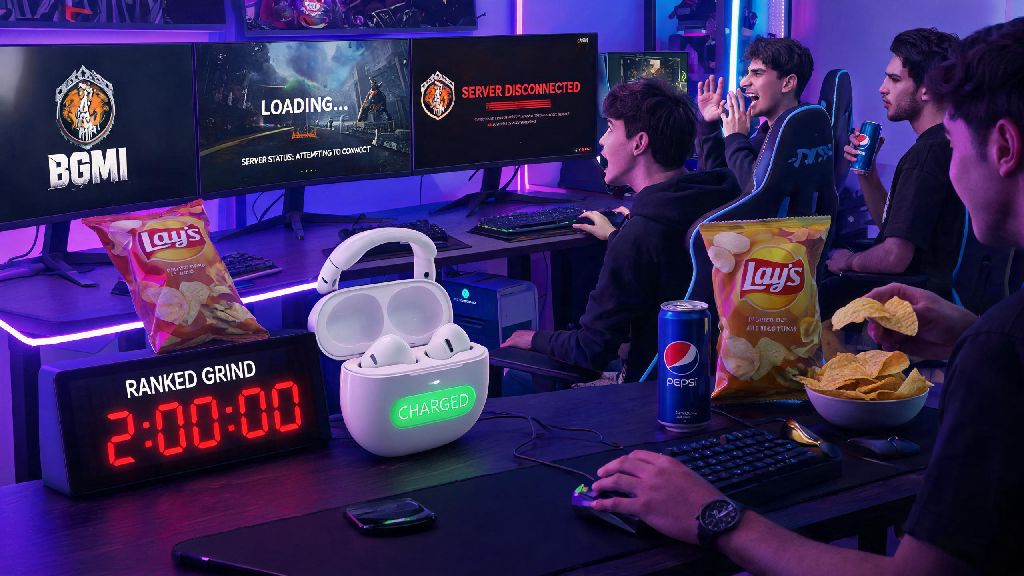
You’re all set for a 2-hour ranked grind, your favorite snack is on the desk, and your Bluetooth headset is fully charged. You tap the BGMI icon on your phone, only to be stuck on the loading screen for three minutes straight, no error message, no progress bar movement. The first question that pops into your head, same as every other BGMI player in this situation, is is bgmi live right now? Nothing kills your gaming momentum faster than unexpected server issues, especially when you’re in the middle of climbing ranks or playing with a group of friends. This guide breaks down exactly how to check server status, fix common access problems, and avoid wasting time troubleshooting issues that aren’t on your end.
How to Quickly Confirm If BGMI Live Before You Launch the App
The fastest and most reliable way to check server status is to head straight to official BGMI channels first. Official BGMI social media accounts on X (Twitter), Instagram, and Facebook post outage alerts within 10 minutes of confirmed server issues, including scheduled maintenance windows and unexpected downtime. I learned this the hard way a few months back, when I spent 20 minutes restarting my router, updating my phone, and even reinstalling the app before I checked the official X account and saw there was a last-minute emergency maintenance announcement.
If you don’t follow official accounts, trusted third-party server status trackers are the next best option. These sites aggregate user reports from thousands of players across the country, so you can see if there’s a spike in connection complaints in the last 30 minutes. Be careful with random, low-traffic status sites you find through search, though: many are loaded with intrusive ads and even malware, so stick to widely used, well-reviewed trackers only.
If you can open the app but can’t get past the login screen, check the in-game notice board first. Most scheduled maintenance alerts are posted there 24 to 48 hours in advance, so you can plan your play sessions around downtime. That means you won’t end up sitting down to play right as servers go offline for a 3-hour patch.
Common Reasons BGMI Servers Go Offline Without Prior Warning
Most scheduled maintenance is announced days in advance, but there are plenty of times servers go down with no heads up at all. Understanding these common causes can help you avoid unnecessary troubleshooting steps when you run into access issues.
First, unexpected server overload is the most frequent cause of unplanned downtime. When a new season drops, a popular collaboration (like the recent ones with movie franchises or K-pop groups) launches, or a limited-time game mode goes live, millions of players log on at exactly the same time. The servers can’t handle the sudden spike in traffic, leading to crashes or slow connection speeds for everyone.
Another common reason is emergency maintenance for critical bug fixes or exploit patches. If devs find a game-breaking cheat that lets players get unlimited health, or a security flaw that puts user data at risk, they’ll take servers offline immediately to roll out a fix, even if it means no advance warning. This is frustrating for players, but it’s usually necessary to keep the game fair and secure for everyone.
Sometimes, the issue isn’t with BGMI servers at all: it’s with regional internet service provider routing problems. If only players in your state or city are reporting connection issues, it’s likely a problem with your ISP’s connection to BGMI’s servers, not the game itself.
Not sure if the issue is on your end or the servers? Look for these key signs:
If all three of these are true, you can be almost certain the issue is with BGMI servers, not your phone or internet connection.
Fixes to Try If You Can’t Access BGMI When Servers Are Confirmed Live
If you’ve checked official channels and third-party trackers, and servers are confirmed to be up and running, but you still can’t log in, there are a few simple fixes you can try in order to resolve the issue fast.
First, clear the BGMI app’s cache first, before you try anything else. Corrupted cache files build up over time, and they can cause all kinds of weird connection errors even when servers are working perfectly. On Android, you can do this by going to your app settings, finding BGMI, tapping storage, and selecting clear cache. On iOS, you’ll need to offload the app and reinstall it, but don’t worry: your game data is saved to your account, so you won’t lose any progress.
Next, check if you’re running a VPN, ad blocker, or custom DNS service on your phone. BGMI blocks most VPN connections to prevent cross-region play and cheating, so if you left your VPN on after streaming content from another region, that’s almost certainly the cause of your connection issues. I’ve made this mistake at least three times now: I turn on a VPN to watch a show that’s not available in India, forget to turn it off, and spend 10 minutes confused why I can’t log in even though all my friends are already in a match.
If those two steps don’t work, check your app store for pending BGMI updates. Once a new patch rolls out, older versions of the app are no longer supported, so you’ll get disconnected from servers until you update to the latest version. Most phones have auto-update turned on, but if you disabled it to save data, you might miss critical patches.
As a last resort, restart your router and your phone. Temporary internet glitches or minor software bugs on your device can cause connection issues that look exactly like server outages, and a quick restart fixes 90% of these problems in under two minutes.
How to Get Alerts for Future BGMI Server Outages & Maintenance
Wasting time guessing if servers are down is frustrating, but you can avoid almost all of that by setting up simple alerts for future outages and scheduled maintenance.
First, enable push notifications from the official BGMI app. The app sends push alerts 24 hours before any scheduled maintenance, so you can plan your ranked sessions around downtime. This is especially useful at the end of a season, when you’re trying to grind to a higher rank before the reset. I turned these on last season, and it saved me from sitting down to play right as servers went offline for a 4-hour maintenance window the day before the rank reset.
Next, follow the official BGMI accounts on X (Twitter) and turn on post notifications for their account. They post real-time updates during unexpected outages, including estimated time for servers to come back online, and updates if the maintenance takes longer than expected. You don’t have to scroll through your feed to find the updates, they’ll be sent straight to your phone as soon as they’re posted.
You can also join local BGMI player communities on WhatsApp, Telegram, or Discord. Other players will often post about outages minutes before official notices go up, especially for regional server issues that haven’t been confirmed by the dev team yet. It’s also a great way to find teammates to play with, so it’s a win-win.
Next time you’re staring at a frozen loading screen or getting a connection error, you don’t have to sit around guessing is bgmi live. You have all the tools to check server status in under a minute, rule out issues with your device or internet, and get back to your matches as fast as possible. A little bit of preparation, like following official accounts and enabling push alerts, can save you hours of frustrating troubleshooting down the line, and help you make the most of your limited play time. I’ve used all of these tips myself for the last two years, and I haven’t spent more than 5 minutes stuck on a connection issue since I started checking official sources first before messing with my phone settings.