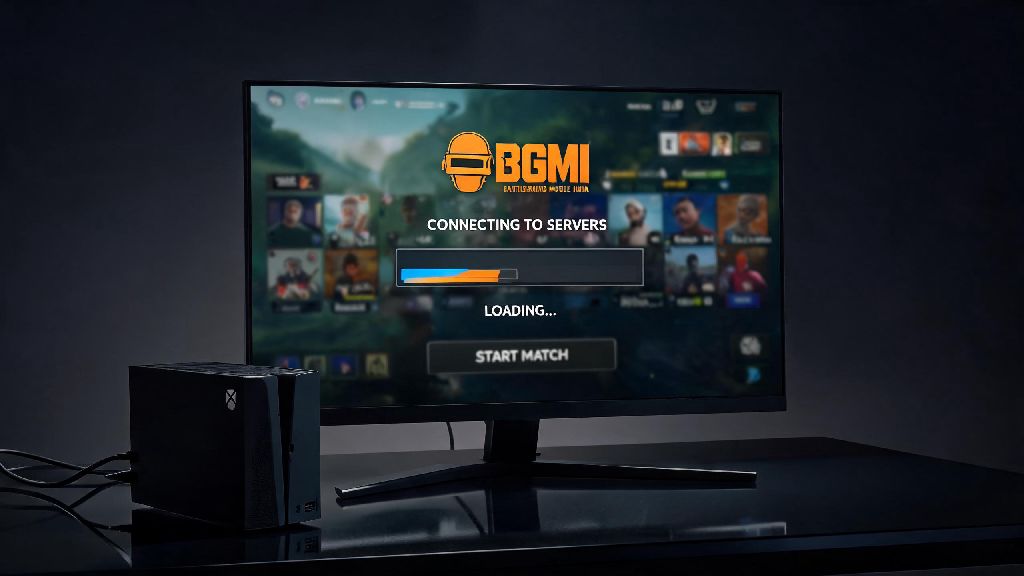
You’ve just wrapped up work, grabbed your favorite snack, and texted your squad to jump into a ranked BGMI match. You tap the app icon, wait for the loading screen to pop up, and instead of the familiar lobby, you get a never-ending loading bar or a vague connection error message. The first thought that crosses your mind is is bgmi server online now, right? We’ve all wasted 10 to 15 minutes restarting our phones, resetting our wifi, and even reinstalling the app before realizing the problem isn’t on our end at all. This guide will walk you through exactly how to confirm server status, fix common connection issues, and avoid getting caught off guard by outages in the future.
How to Quickly Confirm if BGMI Server Online Now
Before you start troubleshooting your own device or internet connection, you need to rule out server-side issues first. There are a few reliable ways to check status in less than two minutes, and you don’t need any special tools to do it. Skip random social media posts from random users, stick to these trusted sources to avoid misinformation.
The first place to check is always official BGMI channels, because they are the only source of confirmed, accurate information about server status. Third-party trackers can be useful, but they sometimes have delays or false positives, so cross-check with official sources if you’re unsure. If multiple trusted sources say servers are down, you can stop troubleshooting your own setup right away and wait for the team to fix the issue.
Official in-game alerts are another easy way to confirm status. If you manage to get past the initial loading screen, you’ll usually see a pop-up notice at the top of the lobby if servers are scheduled to go down soon, or if there’s an ongoing outage. If you can’t even get to the lobby, the loading screen will sometimes display a maintenance message directly, so you don’t have to leave the app to check.
Common Reasons BGMI Servers Go Offline Unexpectedly
Most of the time, server outages aren’t random, and there’s a clear reason the team has taken servers offline or they’ve crashed. Understanding these reasons can help you guess how long the outage will last, so you can plan your time accordingly instead of refreshing the app every two minutes.
Scheduled maintenance is the most common reason for server downtime. The BGMI team runs regular maintenance to roll out new content, fix bugs, patch security vulnerabilities, and adjust game balance. They usually announce scheduled maintenance 24 to 48 hours in advance on their social media channels and in-game notice board, so you can plan your gaming sessions around it. Most scheduled maintenance runs for 2 to 3 hours, and servers are usually back online before the announced end time if there are no unexpected issues.
Unexpected traffic spikes are another frequent cause of unplanned outages. When a new season drops, a popular collaboration goes live, or a highly anticipated feature is released, millions of players try to log in at exactly the same time, overwhelming server capacity. I experienced this first hand last year when the new zombie mode launched: I tried to log in 10 minutes after the update went live, and servers were down for almost three hours because so many people were trying to access the game at once. These outages are usually fixed much faster than scheduled maintenance, since the team just needs to allocate more server capacity to handle the extra traffic.
Security threats or DDoS attacks are a less common but possible cause of outages. The BGMI team has strong security measures in place, but rare attacks can temporarily take servers offline while they mitigate the threat. These outages usually last anywhere from 30 minutes to two hours, and the team will usually post a notice once the threat is resolved and servers are back online. Regional internet provider issues can also sometimes block access to BGMI servers, even if servers are working fine for players in other parts of the country. If you see players in other regions posting that they can log in but you can’t, this might be the issue.
Fixes to Try If BGMI Servers Are Online But You Can’t Connect
If you’ve checked all the trusted sources and confirmed servers are working fine, the issue is almost certainly on your end. You don’t need to be a tech expert to fix most of these issues, and the following steps will resolve 90% of common connection problems in less than 10 minutes.
Restart your router and mobile device first, before you try anything else. Temporary cache buildup on your phone or router can cause connectivity glitches that stop you from connecting to BGMI servers, even if your internet works fine for other apps like YouTube or WhatsApp. Turn off your router for 30 seconds, turn it back on, then restart your phone before you try logging into the game again. This step alone fixes more connection issues than any other fix on this list, so don’t skip it.
Next, check your internet speed and connection quality. BGMI requires at least 1Mbps upload and download speed to run smoothly, and you need a stable connection with less than 100ms ping to avoid lag or disconnections. If you’re on mobile data, make sure you have a strong 4G or 5G signal, and that you haven’t used up your daily high-speed data quota. If you’re on public wifi, many public networks block gaming traffic to save bandwidth, so you might not be able to connect to BGMI servers even if the internet works for browsing.
Clear your BGMI app cache if restarting your device and internet doesn’t work. Corrupted temporary cache files can cause all kinds of glitches, including connection errors, login problems, and crashes. On Android, you can clear cache by going to Settings > Apps > BGMI > Storage > Clear Cache. Don’t tap Clear Data unless you want to re-download all the game assets, which can take up several gigabytes of data and time. If you’re on iOS, you’ll need to offload the app and reinstall it to clear cache, so make sure your game progress is linked to your social account first so you don’t lose it.
Disable any VPN or proxy services you might be running. BGMI blocks most VPN connections to prevent cheating and cross-region account exploitation, so if you’re using a VPN to access another region’s servers or get early access to exclusive content, that’s almost certainly why you can’t connect. I made this mistake a few months ago when I tried to use a VPN to get early access to a collaboration skin, and I spent 20 minutes troubleshooting my internet before I remembered I had the VPN turned on. Turn it off, restart your game, and you should be able to connect right away.
How to Get Notified of BGMI Server Outages Ahead of Time
You don’t have to wait until you’re trying to log in to find out servers are down. There are a few simple steps you can take to get notified of outages and scheduled maintenance ahead of time, so you never waste time planning a gaming session only to find you can’t play.
Turn on post notifications for the official BGMI social media accounts on X (Twitter) and Instagram. The team posts all scheduled maintenance announcements at least 24 hours in advance, and they post updates about unplanned outages as soon as they are aware of them. You’ll get a push notification on your phone as soon as they post, so you can adjust your plans accordingly. I’ve had these notifications turned on for over a year, and I haven’t been caught off guard by a scheduled outage since, which saves me a lot of frustration when I plan squad matches on weekends.
Join a local BGMI community group on Discord, WhatsApp, or Telegram. Most active groups have hundreds of regular players, and someone will usually post about an outage as soon as it happens, even before the official team puts out a notice. This is especially useful for unplanned outages, since official notices can sometimes be delayed by 15 to 30 minutes while the team confirms the issue. You can also ask other players in the group if they’re having connection issues to quickly rule out server-side problems.
Check the in-game notice board every time you log in. All scheduled maintenance announcements are posted at the top of the notice board 48 hours in advance, so you can see exactly when servers will be down and for how long. The notice board also has details about what the maintenance will include, whether it’s a new season, bug fixes, or new content drops, so you know what to look forward to when servers come back online. It only takes 10 seconds to check the notice board when you log in, and it will save you from unexpected outages later.
Next time you’re stuck on the loading screen staring at a connection error, don’t jump straight to reinstalling the app or resetting your internet. First, confirm if is bgmi server online now using the simple methods we covered, so you don’t waste time troubleshooting a problem that isn’t on your end. If servers are down, you can use the downtime to grab a snack, catch up on chores, or practice your aim in the training range on an offline custom room. If servers are online, the simple fixes we shared will get you back into your matches in no time, so you can get back to grinding rank with your squad.