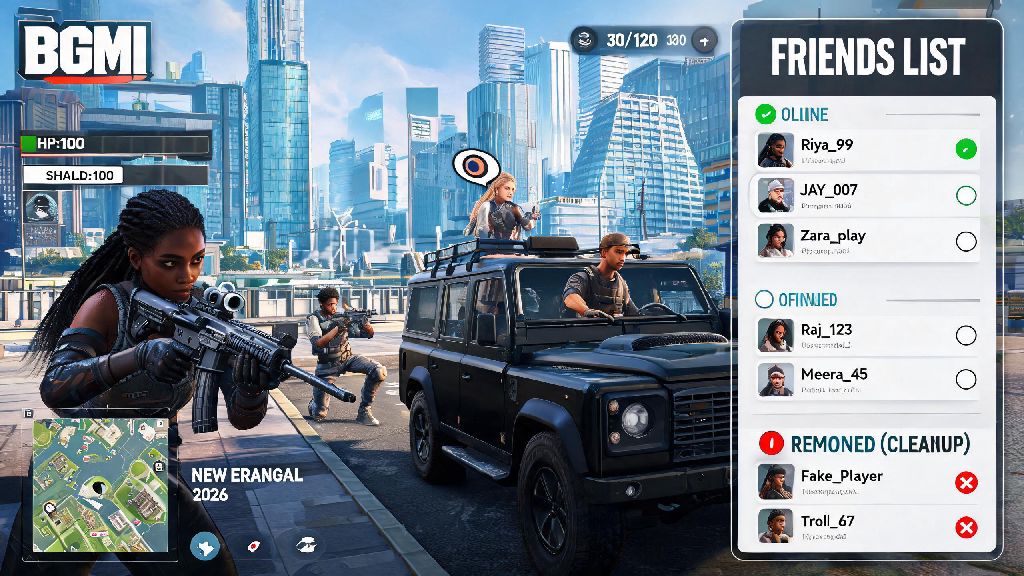
BGMI’s 2026 3.8 update brought a ton of new features, from revamped Erangel map zones to new Royal Pass rewards, and it’s attracted millions of new players to the game over the last three months. If you’re like most casual and competitive players, you’ve probably added dozens of random teammates after quick matches to fill out your squad for ranked games. Over time, though, that list can get cluttered with people you no longer play with, or even players who ruin your matches. If you’ve been struggling to navigate the updated UI, figuring out how to remove friend in BGMI is far simpler than you might think, and it only takes a few seconds per account.
Common Reasons to Clean Up Your BGMI Friends List in 2026
You might be wondering why you should bother deleting people from your friends list at all, especially if you don’t interact with them often. The truth is, a cluttered friends list can actually hurt your gameplay experience more than you realize. BGMI’s 2026 update set a hard limit of 250 friends per account, so if you hit that cap, you won’t be able to add new teammates you meet in scrims or custom rooms. A messy list also makes it harder to find your regular squad mates when you’re trying to queue for ranked, wasting valuable time before matches.
Most players end up cleaning their lists once every few months for a mix of practical and personal reasons. These are the most common triggers for a friends list clear out:
You don’t need a big reason to remove someone from your list, either. If you don’t recognize a name and don’t remember playing with them, it’s totally fine to delete them to free up space. There’s no penalty for clearing out your list, and you can always re-add someone later if you change your mind.
How to Remove Friend in BGMI: Step-by-Step 2026 Walkthrough
The 2026 UI update moved a lot of account settings around, so old guides from 2025 or earlier won’t work for the current version of the game. These steps work for both the full BGMI app and the 2026 BGMI Lite version for low-end Android devices, with only one small difference noted below.
First, open BGMI and log into your linked account (Google Play, Facebook, or Twitter, depending on what you use). On the main lobby screen, look for the two-person silhouette icon in the top right corner of the screen (for Lite users, this icon is in the top left corner instead). Tap that icon to open your friends hub.
Once you’re in the friends hub, navigate to the “My Friends” tab on the left hand menu. You’ll see your full friends list, sorted by who’s online first, then by most recent activity. You can scroll to find the player you want to remove, or use the search bar at the top of the screen to type in their exact IGN if you have it saved. Always double check the IGN and profile picture before you hit remove, because there’s no undo button for this action, and you’ll have to send a new friend request if you delete the wrong person.
When you find the right account, tap the three small dots next to their name to open the action menu. Select “Remove Friend” from the dropdown list, then confirm the pop-up that appears. That’s it, the player is immediately removed from your friends list. They won’t get a notification that you removed them, so you don’t have to worry about awkward confrontations. They’ll just stop seeing you online, and won’t be able to send you match invites or messages anymore.
What to Do If You Can't Remove a Friend in BGMI 2026
Most of the time, the removal process works perfectly on the first try, but there are a few common glitches that can stop the action from going through. The first and most common issue is a spotty internet connection. BGMI requires a stable 4G or Wi-Fi connection to process changes to your account settings, so if your data cuts out mid-process, the removal won’t save. Try switching to a more stable connection, closing and reopening the game, then trying again.
If you’re using a guest account that’s not linked to any social media or gaming platform, you won’t be able to make permanent changes to your friends list at all. Linking your account only takes a minute, and it also protects your progress if you lose your phone or delete the app by mistake, so it’s worth doing even if you don’t plan to remove anyone soon.
Another common issue is if the account you’re trying to remove has been banned by Krafton for cheating or violating community guidelines. Banned accounts show up as grayed out in your friends list, and the remove button might not work at first. Try clearing your BGMI app cache in your phone settings, then restarting the game to sync your list with the 2026 servers. If you still run into issues after trying these fixes, you can submit a ticket to the official BGMI 2026 support team for further help, and they’ll remove the account for you within 24 hours.
Extra Tips to Manage Your BGMI Friends List Better in 2026
Removing friends is only one part of keeping your list organized and useful for your playstyle. These small tweaks will save you time and frustration down the line, so you can spend less time scrolling through your list and more time playing matches.
First, turn on friend request filtering in your account settings. You can set it so you only receive requests from people you’ve played with in the last 7 days, or turn off requests entirely if you only play with people you know in real life. This cuts down on random spam requests from players you’ve never matched with, so you don’t end up with a cluttered list in the first place.
Second, take 5 minutes to set up custom friend groups for your list. You can make groups like “Ranked Squad Mains”, “Event Buddies”, and “Casual Teammates” to sort people by how often you play with them. Custom friend groups cut down on squad queue time by 30% on average according to 2026 BGMI player surveys, so it’s a tiny investment that pays off fast. You can also set notification preferences per group, so you only get alerts when your main squad is online, not every random person on your list.
Third, if you don’t want to remove someone entirely but don’t want to get their invites, you can mute their notifications instead of deleting them. Muting notifications is a great alternative to removal if you only play with a person during special event modes, or if they’re a friend of a friend you don’t want to offend. You’ll still see them on your list, but you won’t get spammed with invites when you’re trying to grind ranked.
Finally, set a quick monthly reminder to clean out your list. Even if you only remove 5 or 10 inactive accounts each month, you’ll never hit the 250 friend cap, and you’ll always have space for new teammates you meet. I do this on the first Sunday of every month, and it only takes 10 minutes total to go through my list and clear out people I haven’t played with recently.
At the end of the day, small quality of life tweaks to your BGMI account make a huge difference in how much you enjoy the game. You don’t have to keep people on your list that make matches less fun, or waste time scrolling through hundreds of inactive accounts to find your squad. Now that you know how to remove friend in BGMI in 2026, you can keep your list organized, avoid toxic players, and spend more time actually playing the game with people you enjoy queuing with.