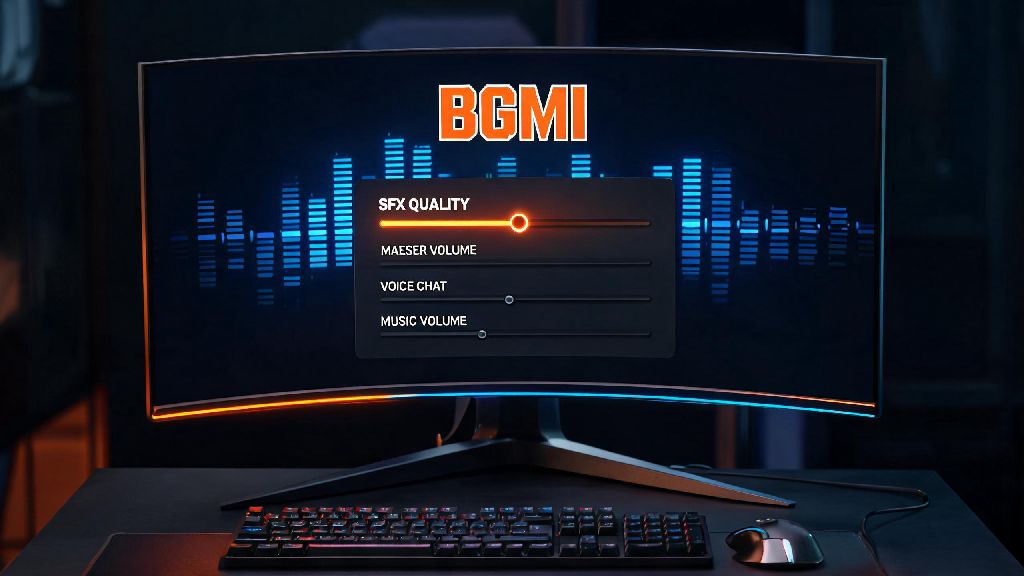
If you’ve ever lost a close BGMI 1v1 because you couldn’t tell which direction an enemy’s footsteps were coming from, you’ve probably messed with your audio settings at some point. Most players tweak volume sliders for voice chat or background music, but far fewer pay attention to one of the most impactful audio settings in the game. If you’ve ever asked what is sfx quality in bgmi, you’re not alone, and understanding this setting can help you catch subtle audio cues you’ve been missing for months. I’ve been playing BGMI since its initial launch, and I used to ignore this setting entirely until a missed grenade pin sound cost me a conqueror rank push a year back. Since then, I’ve tested every SFX quality level across three different devices to figure out what works best for different playstyles and hardware setups.
What Is SFX Quality in BGMI, And How Does It Work?
SFX stands for sound effects, and this setting controls the clarity, detail, and processing of all in-game sound effects that aren’t part of background music or voice chat. Unlike music, which is mostly for atmosphere, SFX covers every sound that directly impacts your gameplay: footsteps on wood or grass, suppressed gunshots from 100m away, the faint click of a grenade pin being pulled, the hum of a distant UAV, even the quiet rustle of someone looting a crate right next to your hiding spot.
Higher SFX quality settings use uncompressed or higher-resolution audio files, and the game spends more processing power separating different sounds so you can tell their direction and distance more clearly. Lower settings compress these audio files to reduce processing load, which can make distant or quiet sounds blend into background noise. It’s important to note that this setting doesn’t impact how loud your sound effects are, just how detailed and distinct they are. I learned this the hard way when I turned my volume all the way up to fix muffled footsteps, only to end up with ringing ears and still no ability to tell if an enemy was on the first or second floor of a building.
Pros and Cons of Different SFX Quality Levels in BGMI
Before you jump into adjusting your SFX quality, it helps to understand exactly what tradeoffs you’re making when you pick a higher or lower setting. This setting impacts four core parts of your BGMI experience:
Low SFX quality is the most lightweight option. It uses almost no extra processing power, so it won’t cause frame drops even on older entry-level phones, and it won’t drain your battery as fast during long play sessions. The downside is that many subtle sounds get compressed into a muddy mess, so you might not hear a player sneaking up behind you until they’re close enough to shoot. This setting is a good fit only if your device struggles to run BGMI even on the lowest graphics settings.
Medium SFX quality is the sweet spot for most players. It retains almost all of the important audio cues you need for competitive play, like direction of footsteps and distance of gunshots, but it only adds a tiny amount of processing load. I’ve tested this setting across half a dozen mid-range phones released in the last 3 years, and almost all of them run it without any noticeable frame drops or overheating.
High or ultra SFX quality is designed for flagship devices with powerful processors. You’ll be able to pick up even the tiniest audio details, like the difference between footsteps on tile vs concrete, or the sound of a player equipping a scope 50m away. But if your device doesn’t have the processing power to handle it, you’ll notice sudden frame drops during team fights, when the game has to process multiple sounds at once. It also drains battery 30-40% faster than medium quality in my tests, so it’s not a great fit if you play on the go without a charger.
How to Choose the Right SFX Quality Setting for Your Device
There’s no universal “best” SFX quality setting, because the right pick depends entirely on your device and how you play BGMI. The first thing you should do is test each setting in a classic match training ground first before you use it in a ranked game. Spend 10 minutes listening to footsteps from different floors, gunshots from different distances, and grenade sounds to see if you can tell the difference between levels, and keep an eye on your frame rate counter to see if there’s any drop.
If you have a flagship phone with a top-tier processor (like a Snapdragon 8 Gen 2 or later, or MediaTek Dimensity 9200+), you can safely run high or ultra SFX quality without any performance issues. Just make sure you close any background apps you aren’t using before you launch the game, to free up as much processing power as possible. This is especially true if you play at 90 or 120 FPS, since those frame rates already use a lot of your device’s resources.
If you have a mid-range phone (Snapdragon 7 series, Dimensity 8000 series, or equivalent released in the last 3 years), medium SFX quality will give you the best balance of performance and audio clarity. You won’t miss any important competitive cues, and you won’t have to deal with overheating or frame drops during long play sessions. I use this setting on my 2-year-old Snapdragon 778G phone, and I’ve never had an issue hearing enemies before they see me.
If you have an entry-level phone or a device that’s more than 3 years old, stick to low SFX quality to avoid frame drops during fights. It’s better to have consistent 60 FPS and miss a few subtle audio cues than to have perfect audio but drop 30 frames when a team pushes you, making it impossible to aim properly. Also, remember that phone speakers can’t pick up the subtle audio details that high SFX quality adds, so if you never play with headphones, you don’t need to go above medium quality no matter what device you have.
Common SFX Quality Mistakes to Avoid for Better BGMI Performance
Even if you pick the right SFX quality level for your device, small mistakes can make the setting far less effective than it should be. One of the most common mistakes I see players make is cranking SFX quality to max just because their device can run it, even if they don’t use headphones. If you’re playing on your phone’s built-in speakers, the extra audio detail from high SFX quality is completely wasted, since most phone speakers can’t reproduce high-frequency sounds like distant footsteps clearly anyway.
Another mistake is confusing SFX quality with SFX volume. If your SFX quality is set to low, turning up the volume slider won’t make distant footsteps clearer, it’ll just make all sounds louder, including background noise like wind or plane engines. Adjust SFX quality first before you tweak your volume sliders for the best results. I usually keep my SFX volume at 70% once I’ve picked the right quality level, which is loud enough to hear quiet cues without hurting my ears during long play sessions.
A lot of players also forget to check their SFX quality setting after a BGMI update. Major patches often reset audio and graphics settings to default, so if you suddenly notice that you can’t hear footsteps like you used to after an update, don’t run out to buy new headphones first. Check your SFX quality setting first, because there’s a good chance it got reset to low or medium without you noticing.
Finally, don’t forget to adjust your other audio settings to match your SFX quality level. Even if you have ultra SFX quality, you won’t hear footsteps if your background music is turned up to 80% or your voice chat is blasting your teammates’ conversations. Keep background music below 20% and voice chat at 50% if you play competitively to make sure SFX cues come through clearly without interference. I also turn off the in-game lobby music entirely, since it doesn’t add anything to my gameplay and just wastes battery.
At the end of the day, what is sfx quality in bgmi isn’t just a throwaway setting to ignore when you’re adjusting your graphics. It’s a core part of your gameplay setup that can give you a huge competitive edge if you configure it correctly, or hold you back if you pick the wrong level for your device. Don’t just copy what your favorite streamer uses, because they’re probably playing on a high-end flagship device that can handle ultra settings without issues. Take 10 minutes to test each level for yourself, pay attention to both audio clarity and frame rate, and pick the option that works best for your playstyle. You might be surprised how many more enemies you hear coming once you get this setting right.