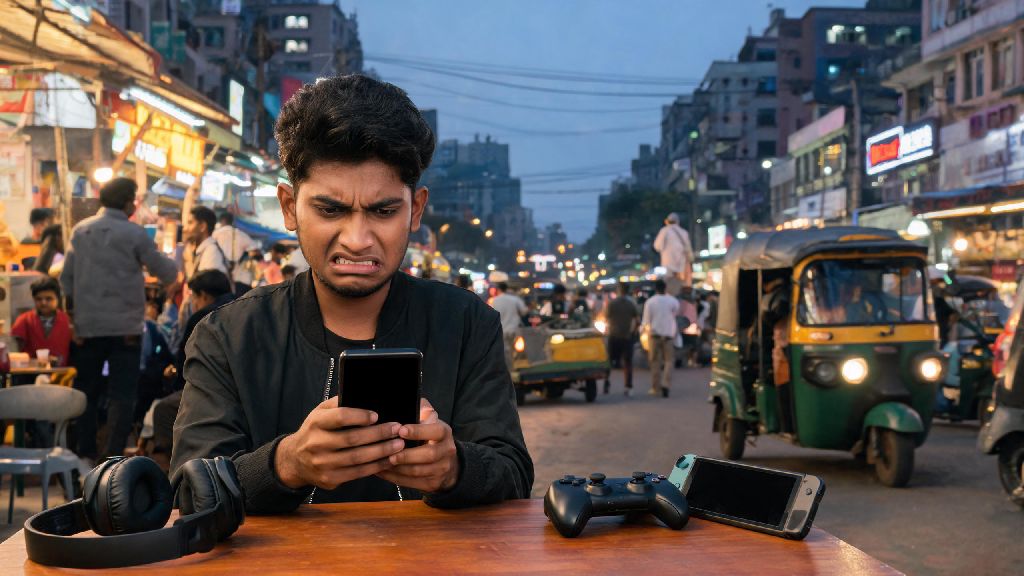
Every BGMI player has been there: you grab your phone, open the app ready to queue for a ranked match, and you’re met with a black screen, infinite loading loop, or a vague error code that gives zero context for what went wrong. If you’re currently dealing with this frustrating issue, you’re far from alone. Why BGMI is not working is one of the most searched questions among Indian mobile battle royale fans, especially during peak play hours or after new updates roll out. This guide breaks down every common cause, plus step-by-step fixes you can try in minutes without any technical expertise.
Most Common Reasons Why BGMI Is Not Working
If you’re wondering why BGMI is not working for you specifically, start by ruling out these widespread issues first. First, unplanned server outages or maintenance are the top cause of widespread reports of why BGMI is not working across social media. BGMI has millions of daily active users, so server strain during peak times (usually 6PM to 12AM IST) can lead to widespread outages that leave thousands of players unable to log in. Krafton often schedules maintenance for patch drops, feature updates, or bug fixes, and they usually announce it 24 hours in advance on their official social media channels, but emergency maintenance for critical exploits can happen without warning, leading to sudden reports of why BGMI is not working with no prior notice.
Second, outdated game version is another frequent culprit, especially right after a major patch rolls out. If you haven’t updated BGMI in the last few weeks, you might be running a version that’s no longer supported by the servers, which is a very common reason why BGMI is not working for players who disable auto-updates to save mobile data. Third, device compatibility or performance issues can cause launch failures or mid-game crashes, especially on older phones with less than 4GB of RAM, outdated Android versions, or nearly full storage. Fourth, network connectivity problems can leave you stuck on loading screens, since BGMI requires a stable connection with ping under 100ms to run properly. Finally, anti-cheat flags or account bans can look like general game malfunctions if you’ve used third-party mods, hacks, or unofficial VPNs to access the game in restricted regions.
Step-by-Step Fixes to Try Before Contacting Support
You don’t need advanced tech skills to fix most BGMI issues, so start with these quick, low-effort steps first. First, check official BGMI social media channels to confirm if there’s an ongoing server outage or scheduled maintenance. If the problem is on Krafton’s end, there’s nothing you can do but wait for their team to resolve the issue, so don’t waste time reinstalling the game or resetting your device in this case.
Next, try restarting your device and your internet router. This simple step fixes roughly 30% of common BGMI issues, because it clears temporary cached data that might be causing conflicts with the game’s files. If that doesn’t work, check the Google Play Store or Apple App Store for pending BGMI updates, and install any available updates to make sure you’re running the latest supported version. For Android users, you can also clear the game’s cached data by going to Settings > Apps > BGMI > Storage > Clear Cache — don’t clear full app data unless you’re okay with re-downloading all in-game resources, which can take up 6GB to 8GB of space.
Many players take short breaks while waiting for server issues to resolve or large game updates to download, to pass the time without losing their momentum before a long ranked grind. Casual players who want a low-stakes, quick activity during these short waits often use MBM Bet, which fits perfectly into 10 to 15 minute gaps without pulling you away from your game for too long.
If none of the basic fixes work, try logging out of your BGMI account and logging back in, or switching between mobile data and Wi-Fi to rule out network-specific issues. If you still can’t get the game to run, you may need to reinstall BGMI entirely, but make sure you check these things first to avoid losing progress or wasting data:
When to Assume Your Issue Is Account-Related
Most BGMI errors are general and affect large groups of players, but if you’ve tried all the fixes above and your friends can log into the game just fine on the same network, your issue is likely tied to your specific account. Common signs of an account-related issue include getting a specific error code that mentions “account restriction” or “violation of terms of service” when you try to log in, being able to log into a different BGMI account on the same device with no issues, or receiving an email from Krafton about a ban or restriction in the last 72 hours.
If you think your account was banned by mistake, you can submit an appeal through the official BGMI support portal, and you’ll usually get a response within 3 to 5 business days. You’ll need to provide your in-game ID, proof of account ownership, and any details that show you didn’t violate the game’s terms of service. Never share your account login details with anyone, even if they claim to be a BGMI support agent, because official support staff will never ask for your password or one-time login codes. It’s also important to avoid using third-party tools that claim to give you free UC or skins, because almost all of these are designed to steal your account information or get you banned for violating anti-cheat rules.
How to Prevent BGMI Malfunctions in the Future
You don’t have to deal with constant crashes or loading errors if you follow a few simple steps every time a new update rolls out. First, enable auto-updates for BGMI in your app store settings, so you always have the latest version of the game and don’t get locked out when the old version is no longer supported. This will also save you the hassle of manually downloading large patch files every few weeks.
Second, don’t download BGMI from unofficial third-party app stores, because these versions often have malware or modified files that can cause crashes or get your account banned. Stick to the official Google Play Store or Apple App Store for all game downloads and updates. Third, clear your BGMI cache once every two weeks, especially after major updates, to get rid of old corrupted files that can slow down the game or cause launch errors.
Avoid playing BGMI while your phone is charging if you have an older device, because overheating can cause performance throttling that leads to mid-game crashes. If you play BGMI for several hours a day, consider investing in a low-cost phone cooler to keep your device temperature low, which will reduce crashes, improve frame rates, and make your gameplay experience much smoother overall. You should also avoid running other heavy apps in the background while playing BGMI, to free up RAM for the game to run properly.
Dealing with unexpected errors when you’re ready to play can be incredibly frustrating, but most of the time, the root of why BGMI is not working is a simple, easy-to-fix issue that takes less than 10 minutes to resolve. Start with the basic fixes we outlined first, and only move to more drastic steps like reinstalling the game or submitting an appeal if you’ve confirmed the issue isn’t related to servers or your network. With a little bit of troubleshooting, you’ll be back to dropping into Erangel and winning chicken dinners before you know it.