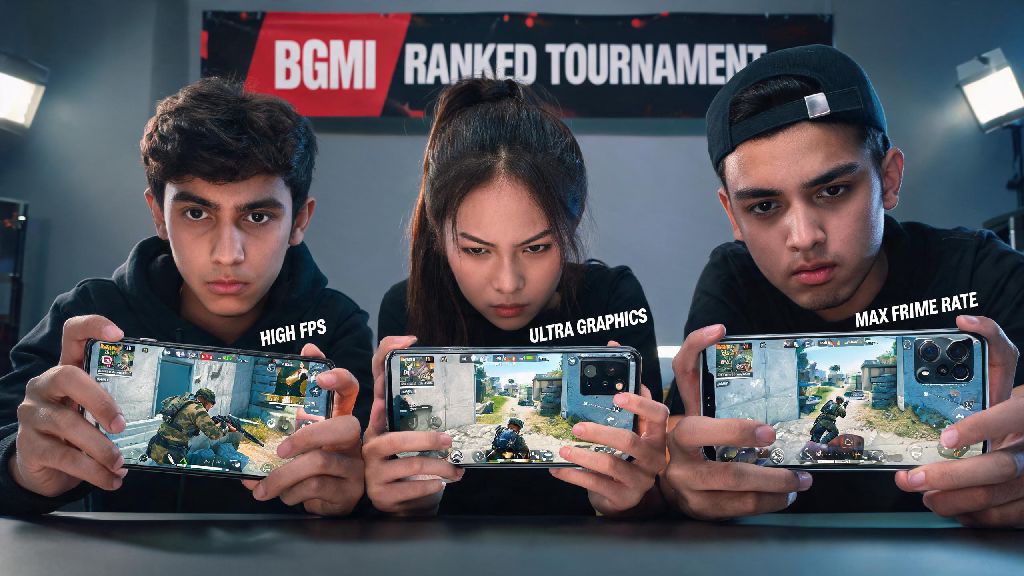
If you’ve ever been mid-push in a BGMI ranked match only to have your screen freeze right as an enemy rounds the corner, you know how big of an impact graphics settings have on your win rate. A lot of players just crank every setting to maximum the first time they launch the game, assuming better visuals equal better performance, but that’s almost never the case. We’ve tested every graphics combination across budget, mid-range, and flagship phones over hundreds of matches to figure out which graphics is best for BGMI no matter what device you’re using. You don’t need to drop $1000 on a new phone to get smooth, competitive gameplay—you just need to tweak a few settings to match your needs.
Which Graphics Is Best for BGMI for Competitive Ranked Play?
If you’re asking which graphics is best for BGMI for ranked, the short answer is Smooth with the highest possible frame rate your device can handle. Competitive play is all about reaction time and visibility, so smooth frame rate above all else should be your top priority, even if it means the map looks a little less detailed. Even a 0.1 second lag or frame drop can cost you a fight, a rank up, or a chicken dinner, so it’s never worth sacrificing performance for pretty visuals. Most pro players stick to Smooth graphics paired with Extreme (60 FPS) or higher frame rates if their device supports it, because this setting strips away extra foliage, texture clutter, and unnecessary effects that can hide enemies or slow down processing. You should also turn off shadows entirely, because they not only take up valuable processing power, but they can also make it much harder to spot enemies hiding in dark corners or under trees. If your device can hold a steady 60 FPS on Smooth graphics, that’s the sweet spot for 90% of competitive players, and you won’t need any higher settings to climb to Conqueror rank.
How to Choose BGMI Graphics Settings for Casual Gameplay
For casual players who play for fun, not to grind ranks, you can afford to prioritize visuals a bit more, as long as you don’t deal with constant, game-breaking lag. If you’re playing classic matches with friends just to mess around, explore the map, or pull off silly stunts, you can bump up the graphics to Balanced or even HD if your device supports it, as long as you keep frame rate at High or above. HDR graphics with anti-aliasing turned on makes the map look incredibly immersive, especially if you’re playing on a large screen phone or tablet, and you’ll be able to appreciate all the small details the devs added to each map. But if you notice any frame drops during fights or when driving across open terrain, you should drop the graphics down a tier immediately, because even casual play stops being fun when your screen freezes every time you get into a fight. If you stream your gameplay or record clips for social media, higher graphics settings will make your content look way better, just make sure your device can handle both recording and gameplay at the same time without lag.
Graphics Settings Breakdown for Every Device Type
The right graphics settings depend almost entirely on what phone you’re using, so we broke down recommendations for every common device category to make it easy to find what works for you. You don’t have to follow these rules exactly, but they’re a great starting point if you’re not sure what to pick:
A common mistake we see a lot of mid-range phone users make is cranking graphics to HD just because the option is available, but that often leads to frame drops during intense fights when the game is processing a lot of action at once. Test your settings in a quick Arcade match first before jumping into a ranked game to make sure everything runs smoothly, no matter what device you’re using. You can also turn on the in-game frame rate counter to keep an eye on performance as you play, so you can adjust settings if you notice consistent drops below your target frame rate.
Mistakes to Avoid When Adjusting Your BGMI Graphics Settings
Don’t copy pro player settings blindly just because they’re good at the game. If you’re using a budget phone and try to run 90 FPS like a pro with a $1500 gaming phone, you’re just going to crash mid-match or deal with unplayable lag. Always test settings for 2-3 full matches before committing to them, because some settings will run fine in the lobby or when you’re looting an empty area, but drop frames when you’re in a busy spot like Pochinki or during a cramped final circle fight. Second, don’t leave auto-adjust graphics turned on. The game will often lower your settings in the middle of a fight to preserve frame rate, which can make the screen suddenly look blurry right when you need to aim clearly. Turn that feature off entirely so you have full control over what your screen looks like during matches. Third, don’t ignore brightness settings alongside graphics. Even if you have the best graphics settings for visibility, if your screen is too dim, you’ll still miss enemies hiding in dark buildings. We recommend setting your in-game brightness to 70-80% for most lighting conditions, and turning off auto-brightness on your phone so it doesn’t change mid-match. Also, don’t forget to close background apps before you launch BGMI, even if you have a high-end device. Other apps running in the background take up RAM that the game could be using, leading to unexpected frame drops even with perfect graphics settings.
At the end of the day, the right settings come down to what you care about most when you play, and what your device can handle. If you’re focused on climbing ranks and winning as many matches as possible, prioritizing frame rate and visibility over flashy visuals will always serve you better. If you play just to hang out with friends and enjoy the map, you can bump up the visuals as long as you don’t deal with constant lag. Take the time to test the settings we outlined above, and you’ll quickly figure out which graphics is best for BGMI for your specific needs. You don’t need expensive hardware to have a great time playing, just a few small tweaks to make the game work for you, not against you.