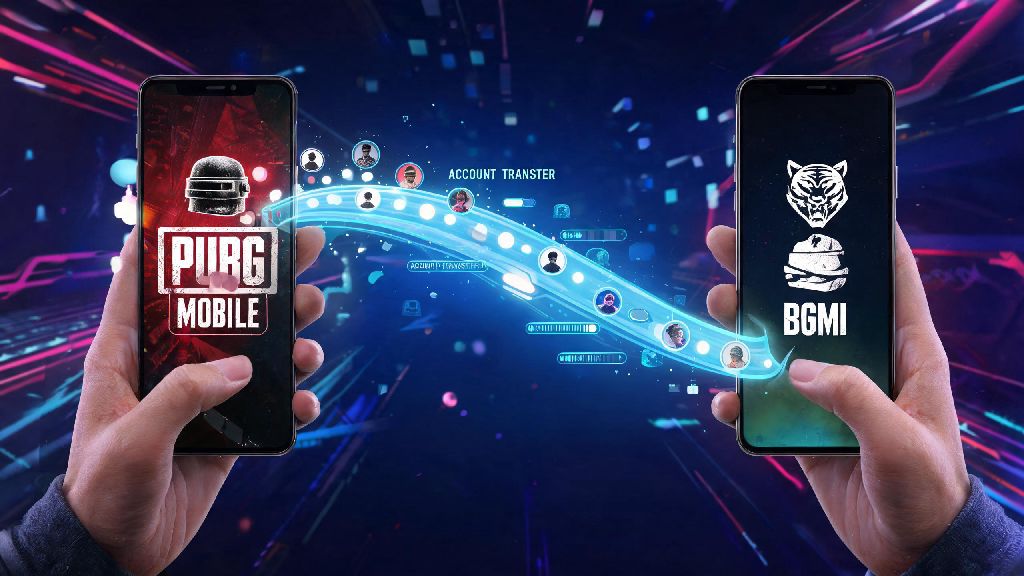
If you’re a long-time PUBG Mobile player based in India, you’ve probably debated making the switch to BGMI now that it’s fully restored with all official features for 2026. One of the biggest questions most players have is how to transfer my PUBG account to BGMI without wasting years of collected skins, rank progress, and hard-earned UC. I went through this process last month when my friend group all moved back to BGMI after the latest 2.9 update dropped, so I’ve tested every step to make sure you don’t run into the same headaches I did. I almost messed up the first time because I tried to use a different Google account than the one I linked to PUBG back in 2023, so trust me when I say the pre-check steps are non-negotiable. This guide only covers official, allowed transfer methods, so you won’t risk getting your account banned for violating Krafton’s terms of service.
What You Need to Check Before Starting Your 2026 PUBG to BGMI Transfer
Before you even open the BGMI app, there are a few critical boxes you need to tick to avoid failed transfers or lost data. Krafton updated its transfer policies at the start of 2026 to cut down on fraudulent account activity, so even if you transferred an account a couple of years ago, these rules might be new to you.
Guest accounts are not eligible for transfer under any circumstances, so if you’ve been playing PUBG without linking a social profile, you’ll need to link one first before you can start the process. Transferring between different operating systems (iOS to Android or vice versa) is not supported as of 2026, so if you switched phones recently, you’ll only be able to transfer data if your new device runs the same OS as your old one.
Step-by-Step Guide: How to Transfer My PUBG Account to BGMI Without Losing Progress
Once you’ve confirmed you meet all the pre-requisites, the actual transfer process is straightforward if you follow each step in order. I recommend doing this when you have a stable Wi-Fi connection, because interrupting the transfer can lead to partial data loss.
First, open BGMI on your device. If you already have a guest BGMI account logged in, go to settings, select “Account,” and tap “Log Out” to return to the login screen. Next, select the exact same login method you used for your PUBG Mobile account – if you used Google for PUBG, select Google for BGMI, and so on. Log in with the same credentials you used for your PUBG profile.
As soon as you log in, you’ll see a pop-up prompt asking if you want to transfer your existing PUBG Mobile data to your new BGMI account. Double-check that the PUBG profile name and level shown on the prompt match your actual account, then tap “Confirm Transfer.” If you don’t see the prompt right away, wait 2-3 minutes on the home screen, or close and reopen the app once. If it still doesn’t appear, you can check the official Krafton BGMI support page for region-specific server updates that might be delaying the prompt.
Once you confirm, the transfer will start processing. Always select the exact same social login you used for PUBG Mobile to avoid linking the wrong account, and do not close the app or turn off your internet while the transfer is processing. Most transfers take 2-5 minutes to complete, though it can take up to 15 minutes if servers are busy during new event launches. When it’s done, you’ll get a confirmation message, and you can start playing right away with all your transferred data.
Common 2026 Transfer Errors and How to Fix Them
Even if you follow every step perfectly, you might run into small issues that stop your transfer from going through. I’ve compiled the most common errors players are reporting in 2026, plus simple fixes you can try before reaching out to support.
The most frequent issue is the transfer prompt not appearing at all. If that happens to you, first clear the BGMI app cache from your device settings, then restart your phone before logging in again. If it still doesn’t show up, make sure your PUBG account isn’t already linked to a different BGMI profile – you can check this by logging into your Krafton account online to see linked game profiles.
Another common issue is partial progress missing after the transfer is done. Don’t panic if you don’t see all your skins right away; some less common cosmetics and old event rewards can take up to 24 hours to sync fully to your BGMI account. If you’re still missing items after 24 hours, submit a support ticket with screenshots of your original PUBG inventory to get it resolved.
You might also see a “transfer failed” error if your original PUBG account has an active ban or restriction. Make sure your original PUBG account is in good standing before starting the transfer, because any bans or violations will carry over to your BGMI account automatically, and you won’t be able to appeal them after the transfer is complete. UC purchased in PUBG Mobile global will be converted to BGMI UC at a 1:1 ratio for Indian users in 2026, so you don’t have to worry about losing any currency you bought officially.
What Transfers Over and What Doesn’t in 2026
It’s important to set realistic expectations before you start your transfer, because not every item from your PUBG account will carry over to BGMI. Krafton has clear rules about what data is eligible for transfer as of 2026, so you won’t be caught off guard after you confirm.
All of your core progress will transfer over with no issues: that includes your rank history from all past seasons, all weapon and character skins you earned or purchased, achievement badges, your full friend list, and your entire UC balance (as long as it was purchased through official app stores). You’ll also keep any clan you’re a member of, though leadership roles won’t carry over, so you’ll need to ask your clan leader to reassign your role if you had one.
A few items won’t transfer, though. Region-specific event items from PUBG Mobile global that are not available in BGMI will stay on your PUBG account and won’t move over. Any UC you purchased from third-party resellers instead of official app stores also won’t transfer, and could even lead to a ban if Krafton flags it as fraudulent. You also won’t be able to transfer any custom controls or sensitivity settings automatically, so you’ll have to set those up manually after the transfer is done.
You can only carry over data from one PUBG account to one BGMI account permanently – there’s no way to undo the transfer or switch to a different PUBG account later, so make sure you’re 100% sure you’re using the right profile before you tap confirm.
At the end of the day, figuring out how to transfer my PUBG account to BGMI doesn’t have to be a stressful process if you follow the official steps and double-check your pre-requisites first. I kept all my legendary M416 skin and Conqueror rank from 3 seasons of PUBG Mobile, and I haven’t run into any issues 3 weeks after transferring. If you hit any snags that aren’t covered in this guide, reach out to Krafton’s support team directly instead of using third-party transfer tools that could steal your account information. Happy gaming in BGMI for 2026!